


Have you ever clicked a website link and landed on a page that says “404 Not Found”? It can be frustrating, especially when you are looking for something important. If you own a website, these broken pages can also make it harder for visitors to find your content. The good news is that most 404 errors are easy to understand and fix. Learning how to fix 404 error problems starts with finding out why a page is missing. Sometimes, the URL is wrong. Other times, the page has been deleted, moved, or changed.
This guide explains what causes 404 errors, how to fix them, and how to prevent them from happening again.
What Is a 404 Error?
A 404 error is an HTTP status code that tells your browser the server cannot find the page you requested. When someone searches for what is a 404 error, they often see messages like:
- 404 Not Found
- Error 404: Page Not Found
- The requested page could not be found
- Sorry, this page does not exist
For example, imagine a website has a blog at example.com/blog/website-tips. If the owner deletes that page, visitors using the old link may see a 404 message.
The website itself may still work. Only that particular URL is unavailable. If you are learning how to fix 404, the first step is to check whether the missing page should still exist. For more information about building and managing websites, you can explore the resources available at Freelance Web Designer.
Why Do Websites Show 404 Not Found Errors?
Before learning how to fix 404 error issues, it helps to understand what causes them.
1. Incorrect Website URLs
A small typing mistake can send visitors to the wrong address. Missing letters, extra symbols, or incorrect page names may cause a 404 error.
2. Deleted Website Pages
Website owners sometimes remove old products, blog posts, or service pages. If someone visits the old URL, the server may return a 404 error.
3. Changed Page Addresses
Changing a page URL without setting up a redirect can break existing links.
For example, changing /old-services to /new-services may leave the original link unavailable.
4. Broken Internal Links
Internal links connect different pages on your website. If a link points to a deleted or incorrect URL, visitors may reach a missing page.
5. WordPress Permalink Problems
WordPress uses permalinks to create page addresses. Incorrect rewrite settings or changes to those settings can sometimes cause working pages to show 404 errors.
How to Fix 404 Error on Your Website: Step-by-Step Guide
You do not need to be a professional developer to solve every broken-page problem. Many fixes only require a few simple checks.
Here is how to fix 404 error problems without making unnecessary changes to your website.
Step 1: Check the Page URL
Start by checking the address of the broken page. Look for spelling mistakes, missing letters, extra spaces, or incorrect page names. If you copied the link from another website, try finding the correct page through the site’s navigation or search feature. Sometimes, correcting a single letter solves the problem.
Step 2: Find Broken Links on Your Website
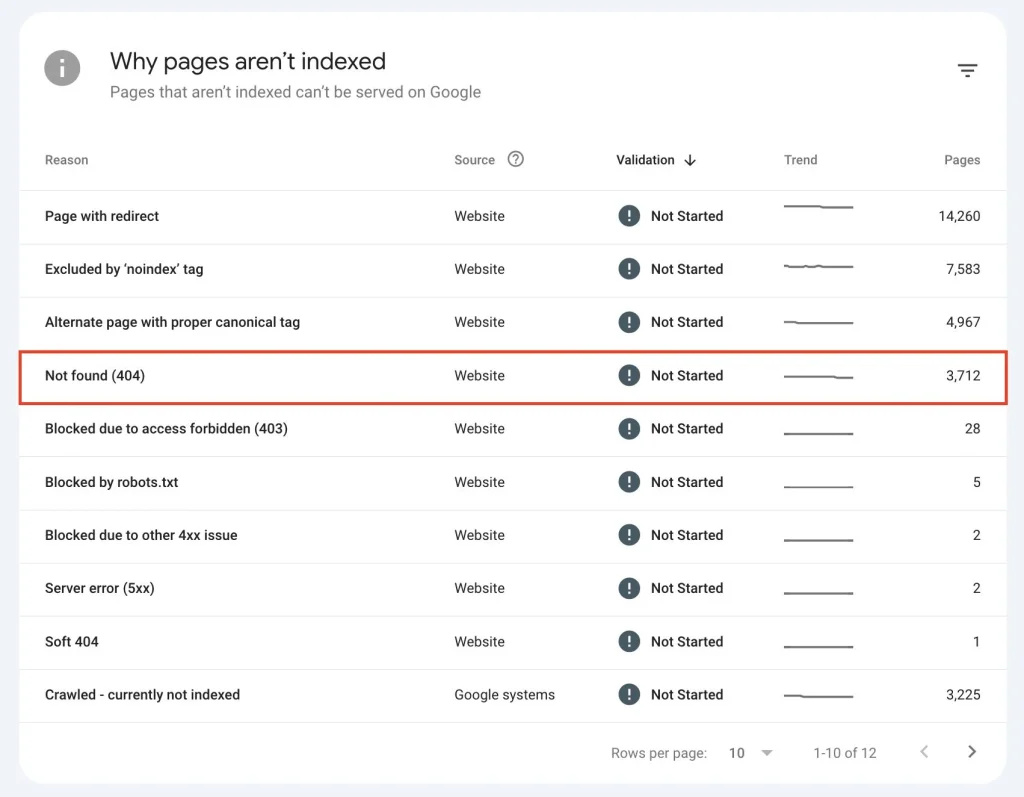
Broken internal links can send visitors to pages that no longer exist. You can use Google Search Console to find URLs that Google has tried to visit but could not find.
To check:
- Open Google Search Console.
- Select your website property.
- Go to Indexing → Pages.
- Find the Not found (404) reason.
- Open the report and review the affected URLs.
You can also use a website crawler to check your internal links. When learning how to fix 404 error issues, focus first on important pages and links that visitors are likely to use.
Step 3: Set Up a 301 Redirect
A 301 redirect sends visitors from an old URL to a new one.
For example:
Old URL: example.com/old-blog
New URL: example.com/new-blog
If the article has moved, a 301 redirect helps visitors reach its new location automatically. WordPress users can create redirects with a suitable redirect plugin or through their hosting setup. However, only redirect a broken page when there is a relevant replacement. Sending every missing page to your homepage can confuse visitors.
Step 4: Fix WordPress Permalink Settings
If several WordPress pages suddenly show errors, your permalink settings may need attention.
Follow these steps:
- Log in to your WordPress dashboard.
- Open Settings → Permalinks.
- Review your current permalink structure.
- Click Save Changes without changing the structure.
- Check the affected pages again.
Saving the settings can refresh WordPress rewrite rules. If the issue continues, check whether a plugin, theme, or server setting is causing the problem. Back up your website before making larger changes.
Step 5: Restore Missing Pages
Sometimes, a page disappears because it was deleted by mistake. If the page is still needed, restoring it may be the best solution. Check your WordPress Trash, saved backups, or previous page versions. If you restore the page, try keeping its original URL whenever possible. This helps existing links continue working. Knowing how to fix 404 error problems also means knowing when to restore content instead of creating redirects.
Step 6: Update Old Internal Links
After restoring or moving a page, check links that point to its old address. Replace outdated URLs with the correct ones. Pay attention to navigation menus, blog articles, buttons, and footer links. Direct links are usually better than making visitors pass through unnecessary redirects.
Step 7: Test Your Changes
After making repairs, open the affected pages in a browser. Check whether the pages load correctly and whether redirects lead to the right content. You can also use a redirect checker or Google Search Console’s URL Inspection tool to check the response status. Testing helps confirm that your changes actually solved the problem.
How to Fix Soft 404 Errors in Google Search Console
A soft 404 is different from a normal 404 error. A normal 404 tells browsers and search engines that a page is missing. A soft 404 happens when Google sees a page that appears missing or empty, even though the server returns a successful response. If you want to understand how to fix soft 404 errors, begin by opening the affected URL and checking its content.
You can often solve the issue by:
- Returning a proper 404 or 410 status when content is permanently gone.
- Using a 301 redirect when the page has moved to a relevant new address.
- Restoring important content if the page should still exist.
- Fixing loading problems that prevent Google from seeing the page.
- Adding useful content when a page is nearly empty.
Learning how to fix soft 404 errors is important because Google may exclude these pages from search results. After making changes, use URL Inspection to test the page and request indexing when appropriate. Not every soft 404 needs a redirect. The correct solution depends on whether the content should exist.
Do 404 Errors Affect Your Website’s SEO?
A common question is whether a 404 error hurts search rankings. Google does not treat every 404 error as a website problem. It is normal for deleted pages without replacements to return a 404 status. However, broken links can frustrate visitors and stop them from finding useful information.
For example, if someone clicks a link to a service page and gets an error, they may leave before learning about that service.
This is why learning how to fix 404 error problems can help improve website navigation and the overall user experience. Regular checks can also help you spot broken links after major website updates.
If technical problems continue or you need help with ongoing repairs, professional website maintenance and support can help you find and correct problems affecting your website.
What Is a 404 Page and How Can You Improve It?
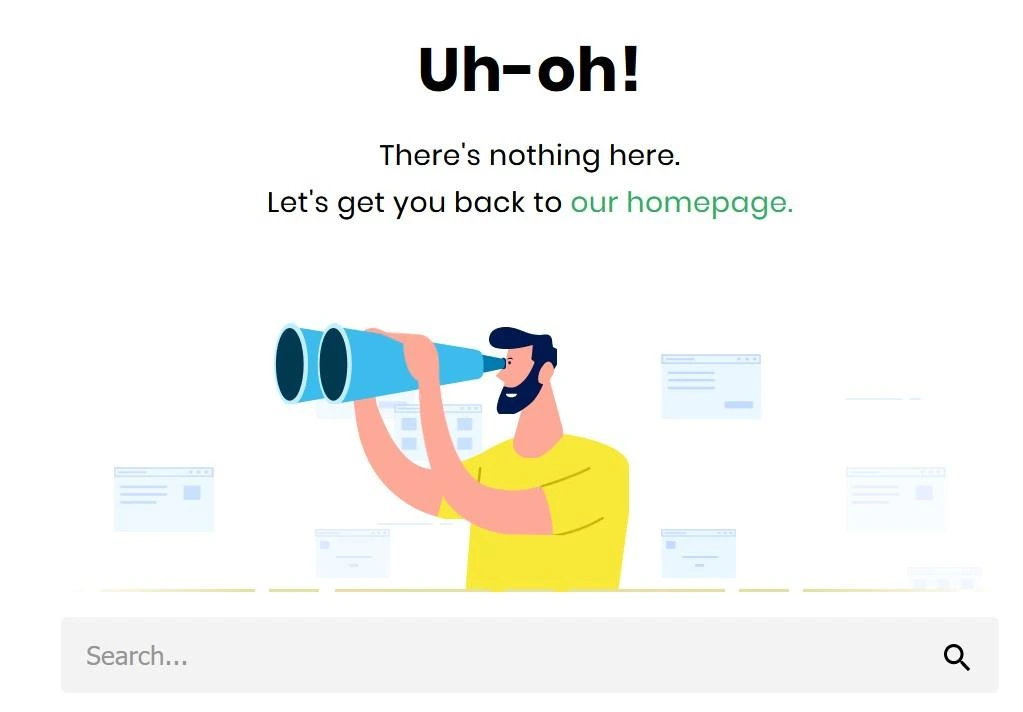
People searching for what is a 404 page usually want to know why they see an error message instead of the content they expected. A 404 page is the page visitors see when the requested URL cannot be found.
A helpful custom 404 page should include:
- A clear message explaining that the page is unavailable.
- A link to the homepage.
- A search bar to help visitors find content.
- Links to useful pages or popular articles.
- Simple navigation that works on mobile devices.
For example, instead of showing only “404 Not Found,” your website could display:
“Sorry, we couldn’t find that page. Try searching for what you need or return to our homepage.” Remember that a custom 404 page should still return the correct HTTP 404 status.
How to Prevent 404 Errors in the Future
Once you understand how to fix 404 error issues, it becomes easier to prevent avoidable problems. Start with these simple habits:
Check your website regularly. Review important links after adding, moving, or deleting pages.
Plan URL changes carefully. Set up suitable redirects before changing existing page addresses.
Keep your sitemap updated. Remove deleted URLs and include the correct addresses for active pages.
Test after website updates. Check important pages after changing themes, plugins, or website settings.
Review Search Console. Look for new indexing problems and investigate URLs that should still work.
These small steps can help visitors reach the right pages and reduce unexpected problems.
Frequently Asked Questions
1. What is a 404 error, and why does it happen?
A 404 error means the server cannot find the webpage you requested. It may happen because the URL is incorrect, the page was deleted, or its address was changed. The rest of the website can still work normally. Checking the original link is usually the easiest place to begin.
2. How to fix 404 errors in WordPress?
If you want to know how to fix 404 problems in WordPress, first check whether the page still exists. Then open Settings → Permalinks and save your existing settings. If the problem continues, check broken links, redirects, and plugin settings. Restore missing pages when needed, and test the affected URLs after making changes.
3. What is the difference between a 404 error and a soft 404?
A normal 404 sends a status code telling search engines that a page is missing. A soft 404 occurs when Google thinks a page is missing or has little useful content, even though it returns a successful response. Knowing how to fix soft 404 errors helps you choose the correct response for each page.
4. Can a 404 Not Found error hurt my Google rankings?
A 404 not found error does not automatically hurt your Google rankings. Google expects some pages to disappear over time. However, broken links to important content can create a poor user experience. You should repair links to active pages and use suitable redirects when useful content moves to another address.
5. What is a 404 page, and should every website have one?
A 404 page explains that a visitor has reached a URL that cannot be found. Every website should handle missing pages correctly, and a helpful custom design can improve the experience. Include clear text, navigation, a homepage link, and useful options for finding content. The page should still return an HTTP 404 status.
6. Should I redirect every 404 error to my homepage?
No. Redirecting every broken URL to the homepage is not a good solution. Visitors may expect a specific article or product but reach unrelated content instead. If a page has moved, redirect visitors to a relevant replacement. If it was permanently removed and has no replacement, returning a proper 404 is usually better.